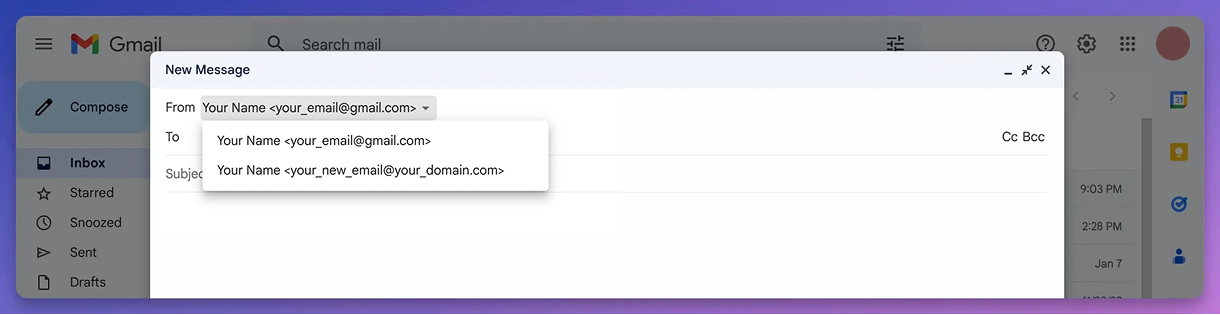
After setting up your custom domain with Mailsuite, you will automatically receive any incoming messages. However, to send messages from this new address, you must first add it as an alias (sender) in your Gmail settings.
Important: Follow the generic steps below, but ensure you use the password located in the "Configuration Tutorial" (accessible via the three-dot menu next to your domain).
STEP 1:
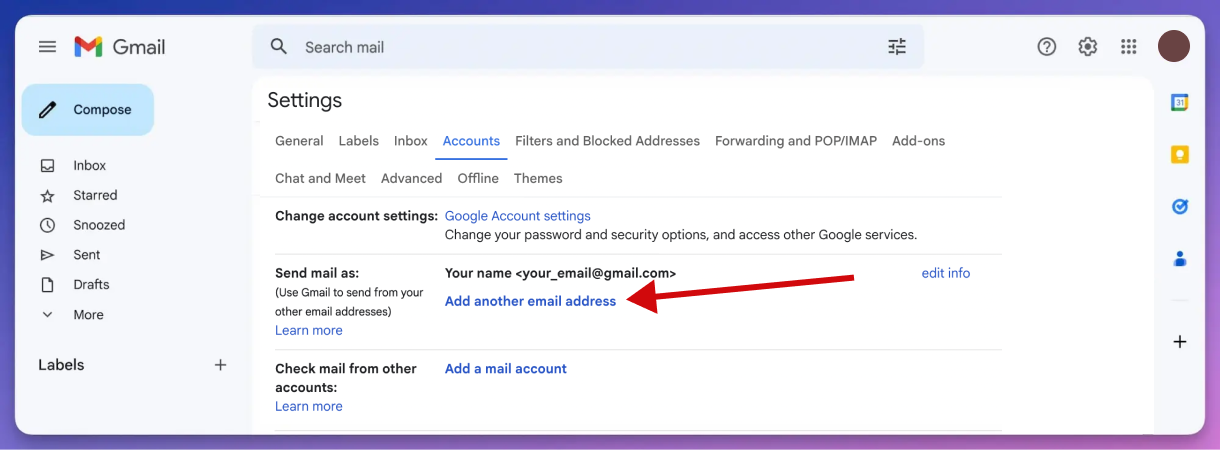
Go to your Gmail account settings.
Visit https://mail.google.com/mail/u/0/#settings/accounts and click "Add another email address"
STEP 2:
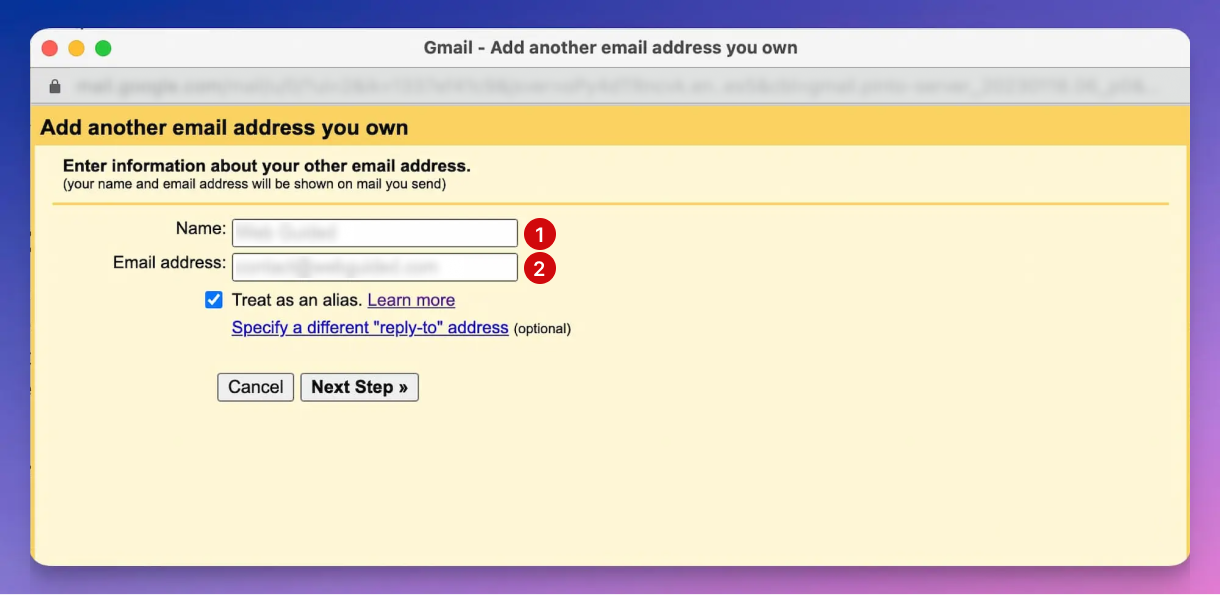
Enter the email information.
Name: Enter the sender name (this is what recipients will see).
Email address: The custom email address you're configuring (must be the custom domain email you just got)
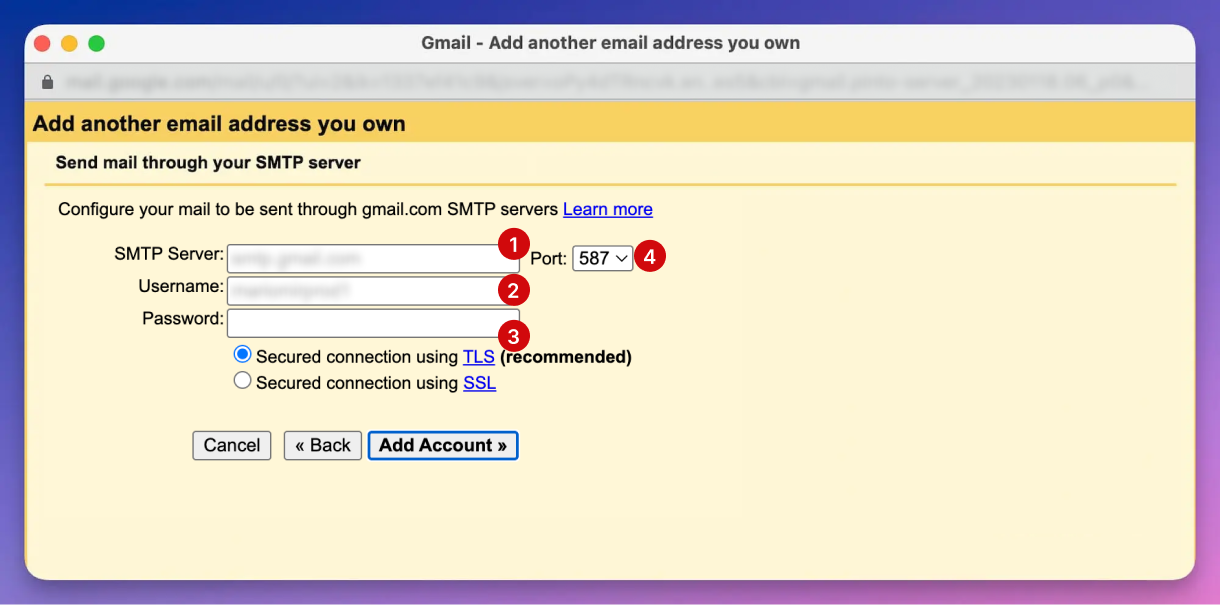
Step 3: Enter the configuration details.
SMTP Server: smtp.improvmx.com.
Username: This is your custom email address you're configuring.
Password: This must be the one provided in the "configuration tutorial" of that specific email, but you can change it later.
Do not modify the other fields.
STEP :
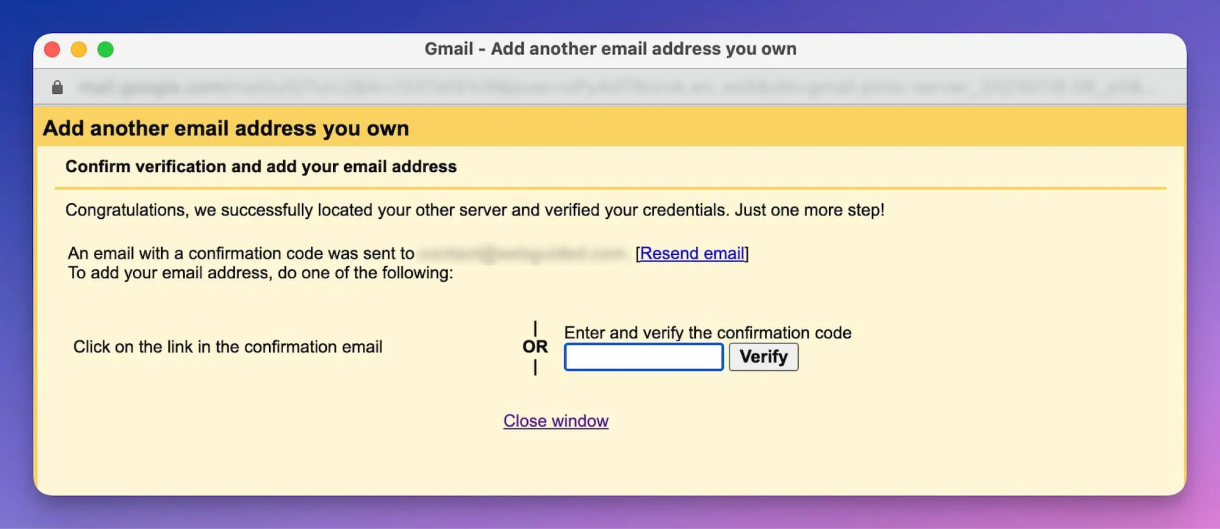
Check your custom email inbox and either click the link in the confirmation email or enter the confirmation code you received.
STEP 5:
How to send from your custom email address.
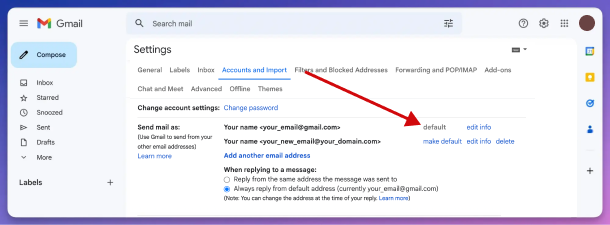
Manually select this email address as the sender when composing a message.
Optiona: Set your custom email address as the default sending address.
Now you are all set! You can now send emails using your new custom email domain from your Gmail